Pixels are the core elements of the canvas in Stochasm, and Rules determine how pixels evolve through time.
Pixels
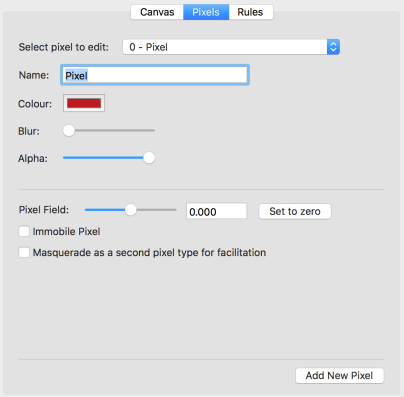
The properties of pixels are controlled in the “Pixels” tab. To view and alter the properties of a pixel, select it in the “Select pixel to edit:” combo box. You can then adjust the following properties of the pixel:
- Name. Enter a name and press enter to save it. This has no impact on the canvas or simulation, it’s just for convenience.
- Colour. To set the pixel colour, click the colour well button and choose whichever colour you’d like.
- Blur. Changing this slider allows you to adjust whether pixels show “trails” when they move. A larger value means that the trails for this pixel type will persist for a longer time on the canvas before slowly fading away.
- Alpha (transparency). This slider controls how transparent a pixel type is on the canvas.
- Immobile Pixel. Enabling this option makes it so pixels of this type can never move from their initial or current locations on the canvas. This is discussed more in Rules below.
- Pixel Field. This slider controls the strength of the “bias field” on this type of pixel. (See Advanced Features.)
- Masquerading. Checking this box enables the option for this pixel type to “pretend” to also be another pixel type, for purposes of “facilitation”. (See Advanced Features.)
New pixel types can be added at any time by clicking “Add New Pixel”. Currently, Stochasm only supports a maximum of 10 pixel types.
To completely generate a new random canvas of pixels at any time, go to the System tab and click “Regenerate System”.
Rules
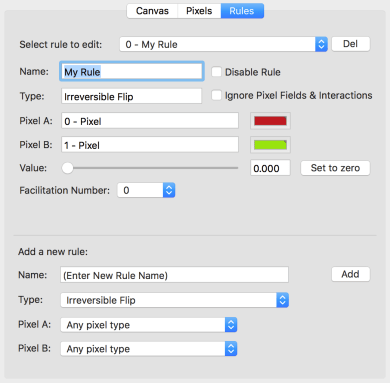
Rules are defined and can be changed in real-time during a simulation in the “Rules” tab.
Types of Rules
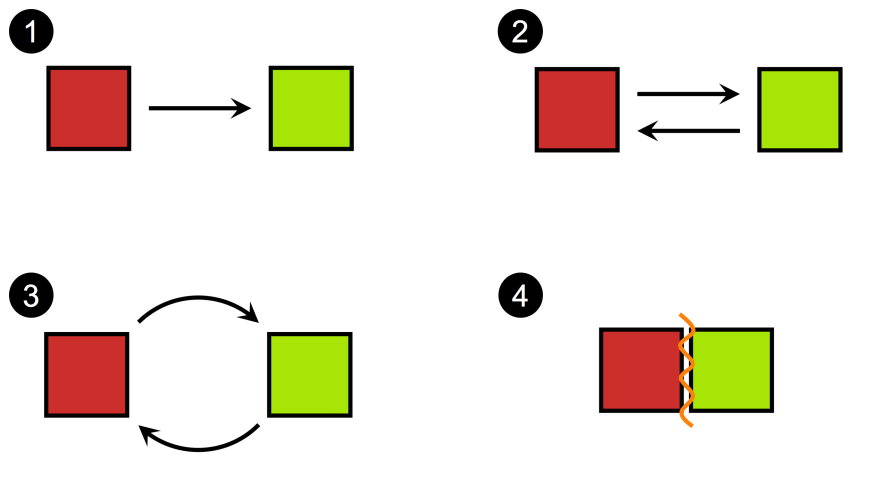
Stochasm gives the user the option of four different types of rules. The behaviour of a rule is controlled by its parameter. The effect of the rule parameter depends on the type of rule.
- 1.) Irreversible Flip. Converts one type of pixel (A) into another type (B). The parameter for this rule controls how likely it is for the rule to succeed when attempted during the simulation: a value of 0 is never, and a value of 1 is always.
- 2.) Reversible Flip. Converts one type of pixel (A) into another type (B), and the reverse B to A is also allowed. The parameter for this rule controls how likely it is for the rule to succeed when attempted during the simulation.
- 3.) Swap. Allows a pixel of one type (A) to swap positions with a neighboring pixel of another type (B). This allows for pixel motion. The parameter for this rule controls how likely it is for the rule to succeed when attempted during the simulations. Note: any pixels marked as “immobile” will never be moved by a swap rule.
- 4.) Pixel-Pixel Interaction. Defines whether two types of pixels (A, B) like to be next to each other or not. The parameter for this rule controls how much the two pixel types A and B like to be touching on the canvas. Negative values mean they like to be in contact with each other, while positive values mean they don’t like to be in contact. A value of zero means they have no preference. (Discussed more in Advanced Features.)
In all cases, the pixel A or B can be just one single pixel type, or you can choose to set A or B to include all pixel types.
Creating & Editing Rules
New rules can be created in the lower half of the “Rules” tab in the main application window. Choose a name for the rule (changeable later), the rule type, and the types A and B of the two pixels that the rule will apply to. Note that “Any pixel type” can also be chosen for A or B. Click the “Add” button to add the rule.
To view or edit an existing rule, select it from the list in “Select rule to edit”. You can alter the following properties of the rule:
- Name. Enter a name and press enter to save it. This has no impact on the canvas or simulation, it’s just for convenience.
- Rule Parameter. Adjust the slider beside “Value” to change the parameter of the rule (see the list of rule types above to see what the parameter does in each case). Click “Set to zero” to revert the rule parameter back to zero (the default).
- Disable Rule. Check this box to turn the rule off temporarily in the simulation.
To delete the selected rule, click “Del”.
There are also some more advanced options for rules. These are:
- Ignore Pixel Fields & Interactions. (For flip and swap rules only.) Selecting this causes the rule to completely ignore pixel fields, and pixel interactions, so that the chance of success is always the raw parameter value you have chosen.
- Facilitation Number. (For flip rules only.) Set this number to a value between x = 1 and 8 to require at least x pixels of a given type C to be neighboring to the current pixel in order for the rule to succeed. Choose the pixel type C acting as the facilitator in the “Facilitate with Pixel” selector that appears.
Head to the Advanced Features section for more information on these.
 Stochasm