Stochasm is an interactive graphical lattice model, serving as both an exploratory scientific tool, and a unique platform for creating digital art. At the core of the app are “pixels” and “rules”, specifying how pixels transform and interact with each other during the simulation.
Canvas & Simulation

The canvas in Stochasm consists of a two-dimensional grid of pixels. These pixels evolve and transform into different types over time, as the simulation evolves. You can choose how many types of pixels you want in your simulation, and the rules specify how they interact with each other, what they can transform into, and when they are able to do so.
Using the App
Opening Stochasm reveals the main program window, where everything happens and can be controlled.
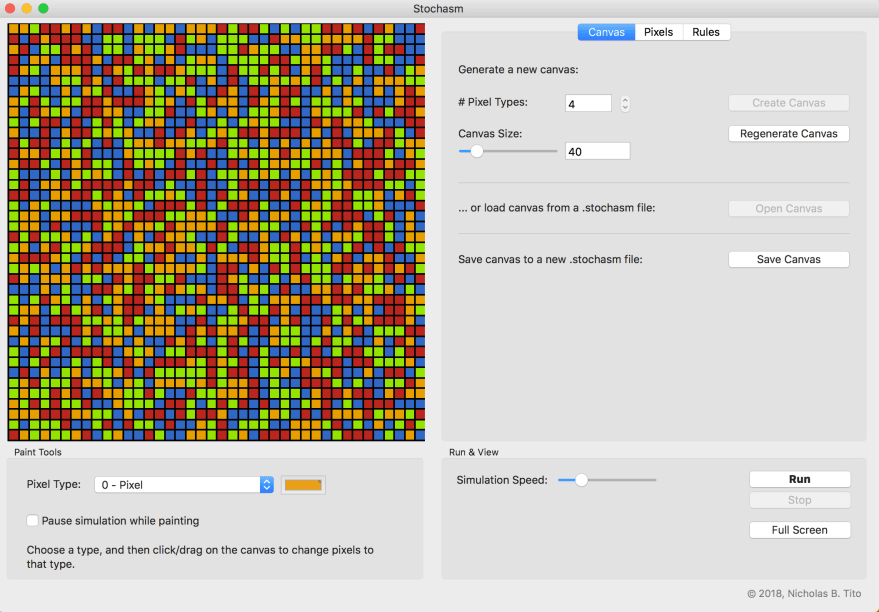
The program is divided into several sections:
Viewport
A live view of the canvas, revealing the current position of pixels, and showing how they evolve during the simulation.
Paint Tools
Selecting a tool in this section allows you to draw pixels into the canvas, while the simulation is running or stopped. Just select the type of pixel you want to paint, and then click and drag in the viewport to draw them in.
Canvas
Create an initial canvas by specifying how many pixels to start out with (they are placed randomly to start), and how many pixels you want in your canvas.
You can also load a previously-saved Stochasm canvas by clicking Open Canvas, or save the current canvas (along with all pixel and rule definitions) by clicking Save Canvas. Lastly, you can always reset your canvas to a new size and random pixel configuration by clicking Regenerate Canvas.
Pixels
This section is where you set the display properties of your pixels. Give them a name (for convenience), change their colour, their blur, and their transparency. You can also add a new pixel type by clicking Add New Pixel.
Check out Pixels & Rules to learn more about the details of pixels.
Rules
Define how your pixels change and interact through the simulation. By creating and tuning rules during a simulation, you obtain beautiful (and at times unexpected) patterns from your pixels. This is the exploratory essence of Stochasm.
Check out Pixels & Rules to learn more about the details of rules.
Run & View
To run the simulation, click “Run”. The speed of the simulation can be controlled by “Simulation Speed”. At any point, the simulation can be stopped by clicking “Stop”. Click “Full Screen” to bring the Viewport to full-screen mode.
View, Resizing, & Full Screen Mode
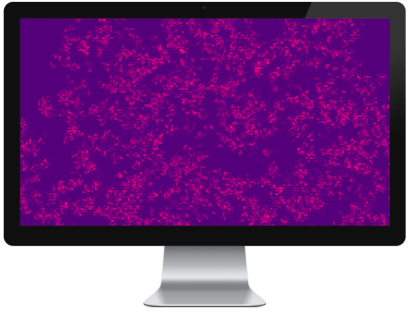
The viewport always contains the current view of the canvas. In (re)generating a canvas with the “Create Canvas” or “Regenerate Canvas” button, the aspect ratio (width / height) of the canvas is set by the current width and height of the viewport.
When the Stochasm window is resized after a canvas is generated, the full horizontal span of the canvas is always kept in view. The following then occurs for the vertical:
- if the current viewport aspect ratio is larger than the canvas aspect ratio, then the vertical view of the canvas is truncated;
- if the current viewport aspect ratio is smaller than the canvas aspect ratio, then repeating images of the canvas are shown in the vertical direction;
At any time, a new canvas with the current aspect ratio of the viewport can be generated by clicking “Regenerate Canvas” again in the Canvas tab.
Stochasm also support a full-screen mode. Clicking “Full Screen” in the “Run & View” section of the app causes the viewport to expand to the full size of the current screen. (The view is automatically resized according to the framework just described above.)
In full screen, the following actions are enabled:
-
- the mouse can be used to paint in the canvas;
- the space bar on the keyboard can be used to start and stop the simulation.
To exit full screen mode, press ESC on the keyboard.
 Stochasm