Getting started: what Stochasm is, and how to run a first simulation
What is Stochasm?
Stochasm is an interactive statistical-physics laboratory that runs in a web browser. It simulates a multi-component lattice of transforming sites, a ferromagnet, a particle in a one-dimensional potential, and patchy discs and bead-spring polymers. Each system evolves under kinetic Monte Carlo or molecular dynamics and is rendered live, so a design and the trajectory it produces are visible at the same time.
Every model’s kernel is compiled from C to WebAssembly and executes locally in the browser. The simulated physics is the published model rather than a visual approximation of it, and ensembles are distributed across several CPU cores.
- Single system. One realisation at full resolution. Sites can be painted by hand and rules adjusted while the system runs.
- Ensemble. Thousands of independent replicas of one design, up to 100,000 for the lattice models, drawn as a cloud of points in a plane of two measured observables.
- Machine learning. The ensemble is clustered by its observables and the community structure is drawn as a live graph.
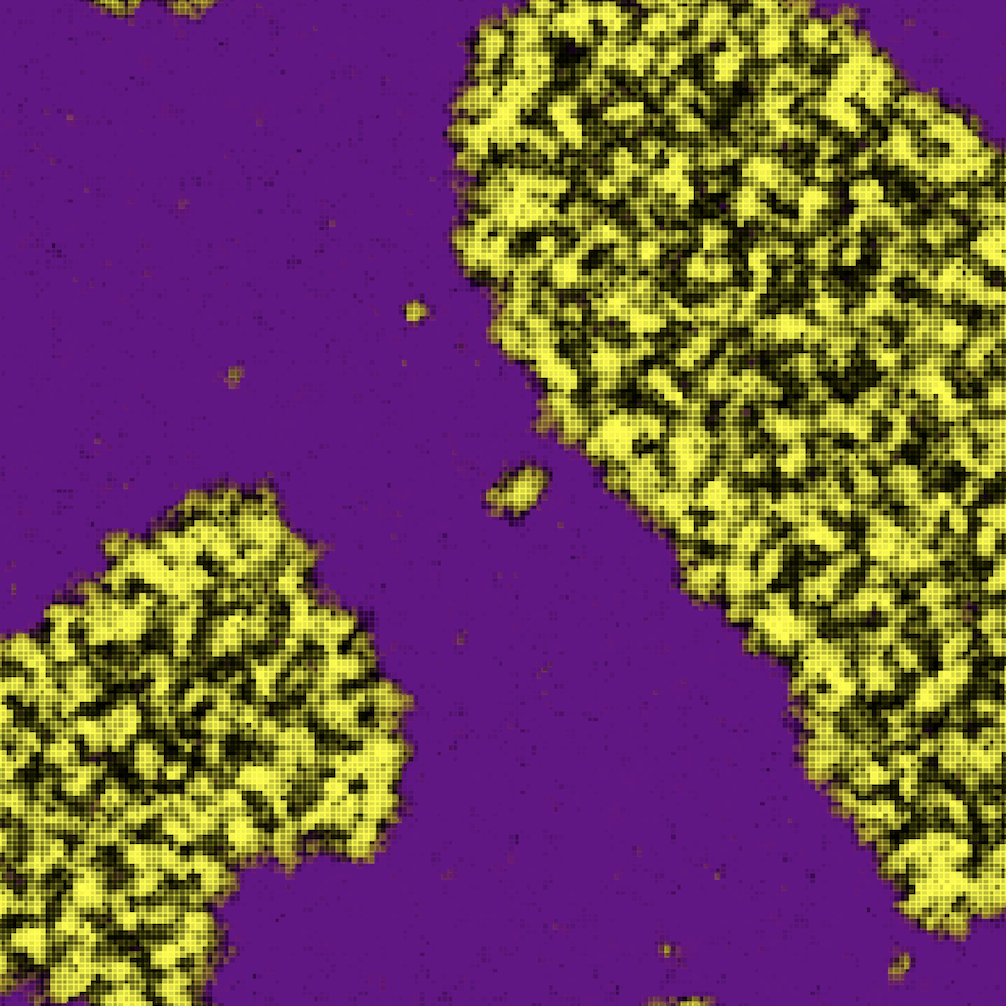
The Gallery collects images produced with the lattice model.
Quick start
A first simulation takes six steps. A welcome panel covers the stage until a system is defined, at which point the live preview replaces it.
- Select a model in the Launcher. Multi-Component Lattice is a good starting point.
- Select a mode. Single system shows one lattice in detail.
- Under Setup, leave Preset selected and choose an entry from the list. Fredrickson–Andersen (FA) is a standard kinetically constrained model. The stage previews it immediately and the Next bar rises into the card.
- Press Next. The preview slides left and the Builder opens at Step 1 of 2, holding the lattice size and the site types. The defaults are suitable.
- Press Next again for Step 2, which holds the rules and the Compute card (compiled C core, worker count). Then press the green Initialize button.
- Press Play, at the top right.
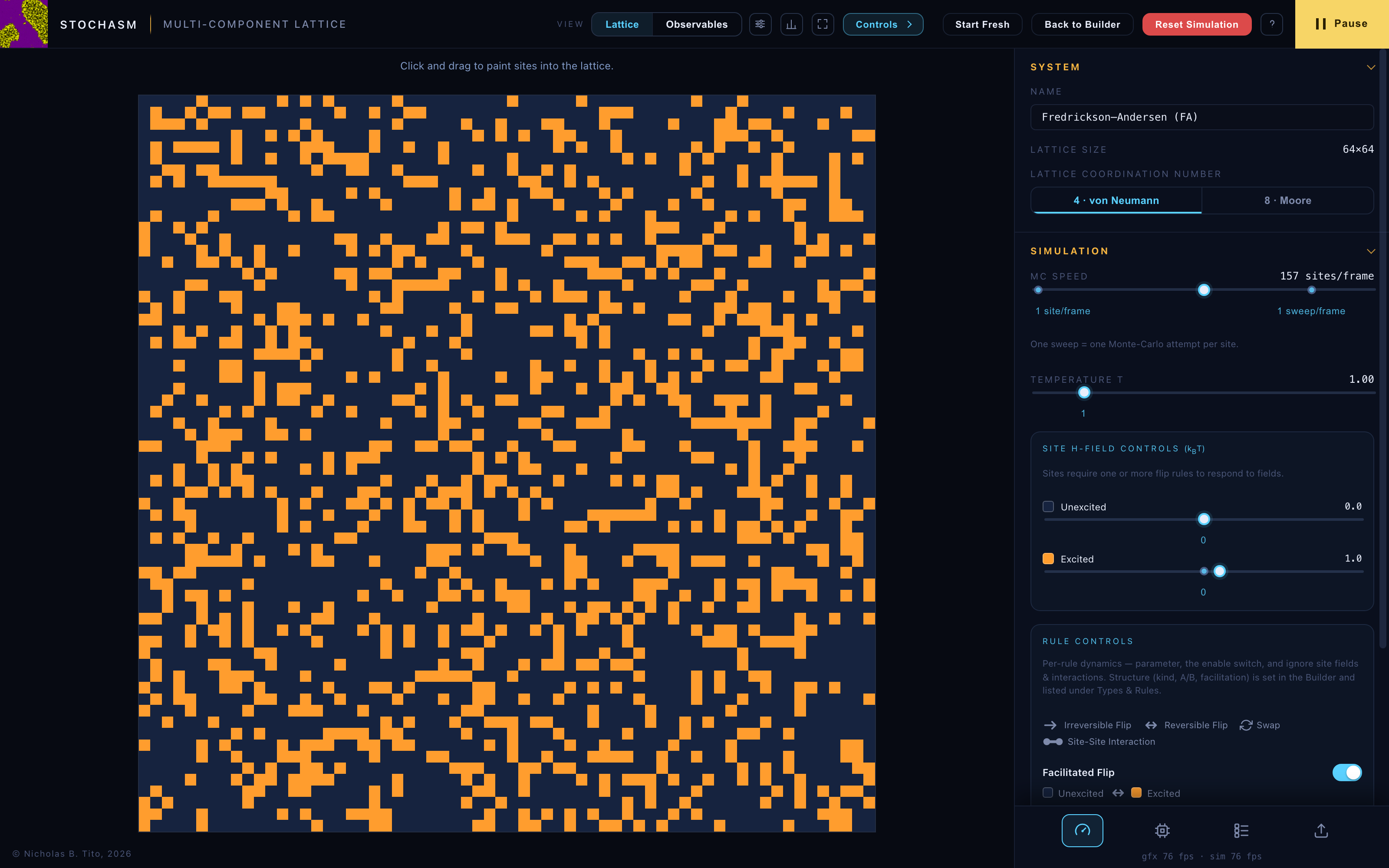
Sites can then be painted directly. Click and drag on the lattice, choosing the type in the Interaction & Paint window (the brush icon beside the view selector). The control panel’s Simulation tab adjusts rates, temperature and fields while the system runs. To change the system’s structure, press Back to Builder in the header, revise the design, and either Resume Simulation to return to the held run or Re-Initialize to re-seed it from the revised design. Start Fresh returns to the Launcher.
The header bar
Global controls occupy the strip along the top. Several are icons, and hovering any of them shows its name. Most of the row appears only once a simulation is running. Before Initialize, the header carries the stage label, the User Guide button and nothing else.
| Control | Function |
|---|---|
| Stage label | Beside the logo. It reads START in the Launcher, BUILDER · STEP N OF 2 in a two-step Builder (BUILDER for the single-card models), and the model’s name once a simulation is initialized. |
| View selector | Lists the views the current model and mode provide, among Lattice, Particles, Observables, Ensemble, Graph and Split, which draws two of them side by side. Where only one view exists, the selector collapses to the two window buttons beside it. |
| View Settings (eye icon) | Opens the floating display window for the active view, holding colours, trails, glow, phase axes and smart zoom. It remains open until closed, follows view switches, and can be dragged by its title bar. |
| Interaction & Paint (brush icon) | Opens the floating tool window for the active view, holding the paint brushes (lattice sites, patchy spawn and delete) and, in the Ensemble view, the Pan/Zoom tool. It behaves as the View Settings window does, and is greyed out rather than hidden when the active view offers no tools. |
| System Sampler & Statistics (bars icon) | Opens the floating Statistics window, or the per-system Sampler in Multi-Component Lattice and Patchy Discs ensembles. 2D Ising and Single Particle ensembles report population means in the Statistics window instead. See Observables. |
| Full screen (expand icon) | Expands the render viewport to the whole display. Painting and every floating window continue to work, so any window required should be opened first. The header itself is outside the full-screen element. The control panel hides and is revealed by moving the pointer to the right edge of the screen. In single-system lattice views the periodic images tile the entire screen, and in the Multi-Component Lattice view painting on any image wraps onto the lattice. Two cyan notes appear on entry. Esc exits, and Space plays and pauses. The Space note reappears at every pause. The neutral guidance tips at the top of the viewport are suppressed in full screen, while amber warnings and rendering errors still draw. |
| Controls | Slides the control panel in and out. Floating windows move aside as it travels. |
| Start Fresh (home icon) | Simulation stage only. Ends the run and returns to the Launcher with the launch configuration intact for editing. In the Builder the equivalent retreat is the round Setup button at the top left of the stage, which returns to the Launcher and discards any held run. |
| Back to Builder | Simulation stage only. Pauses and holds the running system, then re-enters the Builder at Step 2, which holds the rules and the Compute card. Two buttons replace Initialize there. Resume Simulation (green) returns to the held run unchanged, and Re-Initialize (red) re-seeds every system from the current design while leaving controls, views and windows in place. Rule and dynamics edits made while the run is held take effect on Resume. Site types, species and sizes belong to Step 1, reached with the Back button below, which discards the held run. An amber note directly beneath that button states this in advance. |
| Reset Simulation | One click re-seeds the system, or every replica in an ensemble, and pauses. Any learned cluster graph is cleared, because a re-seeded ensemble is no longer described by it. For the Multi-Component Lattice and Patchy Discs every control setting is retained and only the state is re-seeded. For 2D Ising and Single Particle the controls recorded at the latest Initialize or Re-Initialize are replayed. The seed follows the Builder’s choice. A run launched from a pinned lattice snapshot returns to that exact state, and an unpinned run re-seeds randomly from the default site-type occupancies. |
| Play / Pause | Runs and pauses the simulation, by the button or by Space anywhere outside a form control. It is disabled while the worker pool computes initial states, which the stage reports as Computing initial states. |
| User Guide / ? | Opens this guide. It is a labelled User Guide button throughout the Launcher and the Builder, and a compact ? once a simulation is initialized. Individual panel sections carry their own small [?] link, which opens the matching section of this guide in a new tab. |